Installation
Download installer
The installer can be downloaded from:
Installation
The installation progress is automated, and requires one choice that depends on whether you have administrative access to the computer. The installation progress is illustrated in Figure 1.
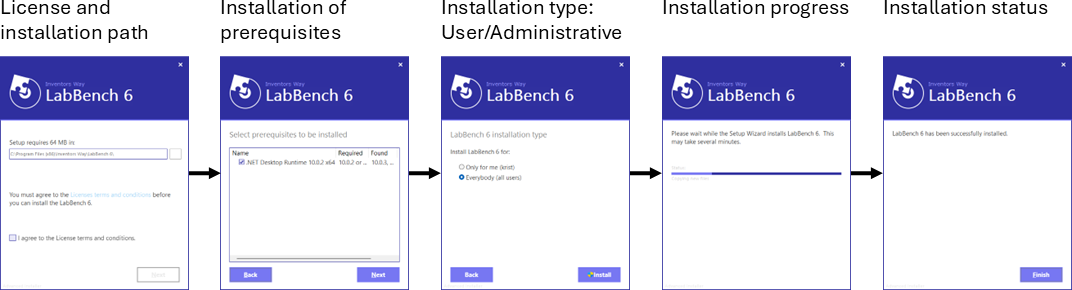
Figure 1
License and installation path
When the installer starts, it will first ask you to choose the installation path and to review and accept the license. Accept the default installation path, unless your organisation have special requirements for the installation location of programs.
The license you will be asked to accept is for Academic, Non-Commercial use of the program. To continue the installation, please accept the “I agree to the License terms and conditions” option.
Then click Next.
Installation of prerequisites
To run LabBench, you need the .NET Desktop Runtime 10.0.2 or higher. The installer will automatically download and install that runtime if it is not already installed on the computer.
Please accept the default choice and click Next.
Installation type
- Only for me:
- Everybody (all users):
Local data directory
| Location | Requirements and function |
|---|---|
| Documents\LabBench6 | |
| C:\LabBench6 | |
| C:\ProgramData\LabBench6 |
License
The license is managed on the System tab in the LabBench Designer (see Figure 2):
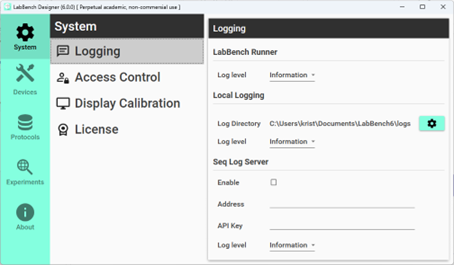
Figure 2
License types
LabBench is provided under the following licenses:
- Academic, non-commercial use: is the default license of LabBench. If you are working at an academic institution and using LabBench for research or education, you may use LabBench under this license. This license is free and no registration is required.
- 3rd-party equipment: if you need to use 3rd-party equipment with LabBench, you will need a paid license to use those devices in your protocols. This means that devices for 3rd-party equipment will first be available on the Devices page in LabBench Designer when you have registered a license code that includes 3rd-party equipment.
- Commercial use: if you need to use LabBench for commercial use, such as clinical trials, you will need a paid commercial-use license.
Registrering the license
Before LabBench can run experiments, it must be registered with a valid license code. To register a license, open the LabBench Designer and, on the System tab, select the License page (see Figure 3).
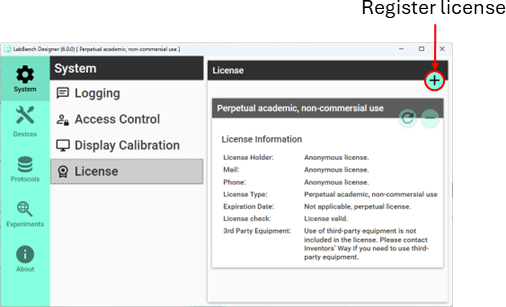
Figure 3
On the license page, click the “Register license” button and in the resulting dialogue, enter your license key and click Register (see Figure 4).
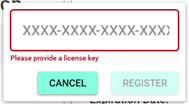
Figure 4
When you click the Register button, the license server will be contacted, and your license will be registered and locked to the computer you are currently using.
Moving and updating the license
A license key can only be used on one computer at a time; however, it can be moved between computers as many times as needed. To move the license key, it must first be deregistered from the license server.
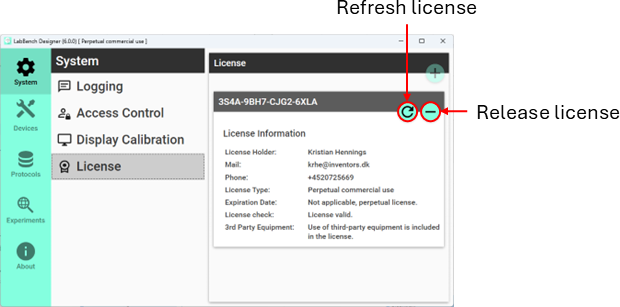
Figure 5
To deregister a license, click the Deregister button as shown in Figure 5. Once the license key has been deregistrered it can be used on a new computer.
For standard licenses, LabBench will not contact the license server after a license key is successfully registered. That means you must update the license manually if changes have been made, such as purchasing a commercial license or using 3rd-party equipment.
To update the license, click the “Refresh license” button.