Questionnaire
Questionnaires makes it possible to collect input during an experimental session. Conceptually, a questionnaire is a sequence of predefined questions that can be presented either to the operator or both the participant and operator, depending on the purpose of the questionnaire.
While questionnaires naturally support classical psychometric instruments (e.g., standardised scales and surveys), their role in LabBench extends beyond this.
In addition to their role as Questionnaires, they can also function as a general-purpose interface for structured data entry, enabling:
- Collection of participant metadata (e.g., demographics, screening criteria)
- Runtime configuration of experimental parameters
- Conditional branching and parameterisation of subsequent procedures
Each question in a questionnaire is uniquely identified by an id and includes: 1) a title (the prompt or label shown to the user), and 2) an instruction (guidance on how to interpret or answer the question). The id is used to identify the answer in the dataset, and to refer to it from calculated parameters.
The procedure panel and participant screen for the <questionnaire> is shown in Figure 1.
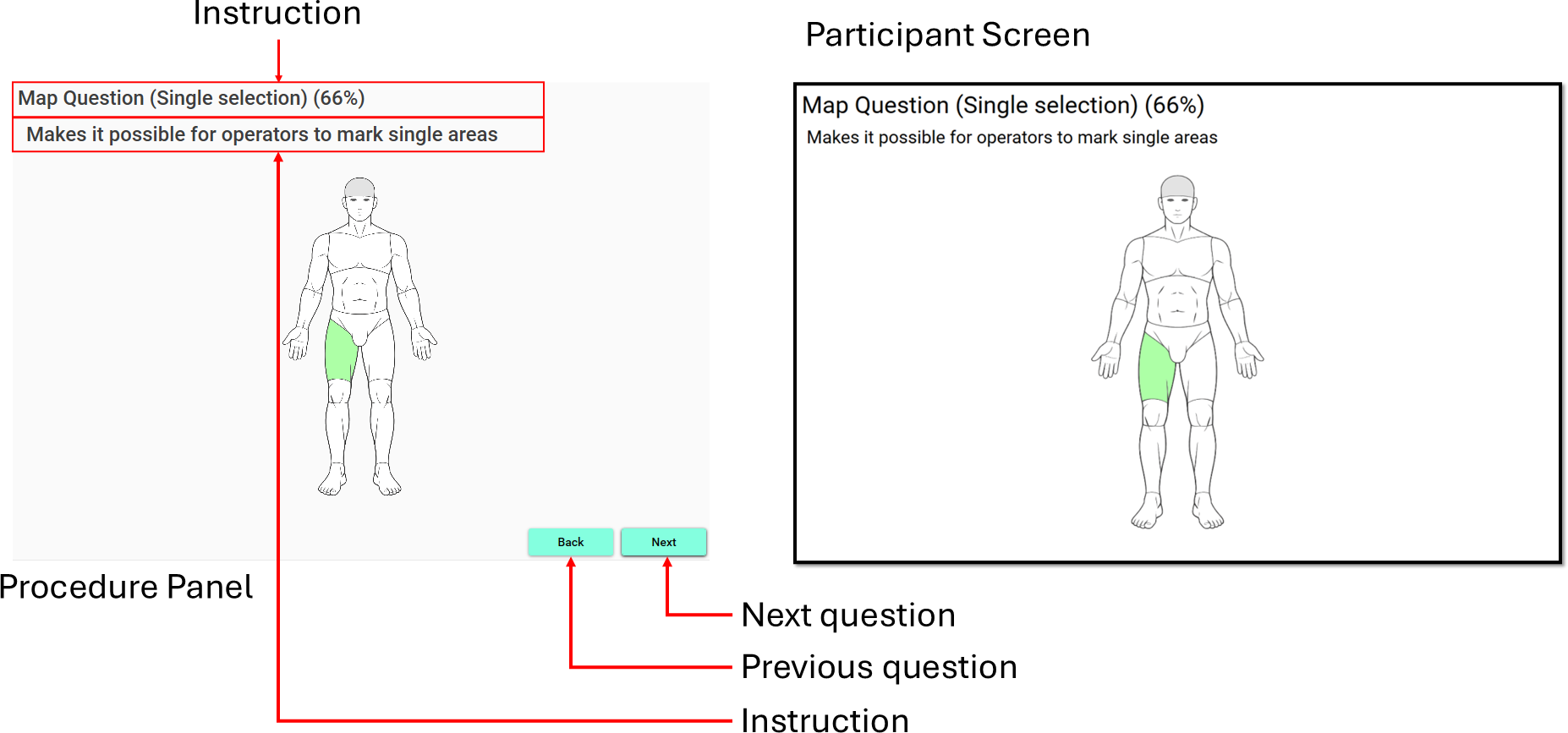
The participant screen is only displayed and used if the questionnaire is to be completed by the participant (control="participant"). The procedure pannel provides in the top of the panel the title and instruction for the question. Below the title of the instruction is the question that must be answered, and at the bottom is buttoms for going to the next and previous questions. It is only possible to go to the next question if the current question has been answered.
Procedure definition
Questionnaires are defined with the <questionnaire> element:
<questionnaire id="PARTICIPANT"
    name="Participant Controlled"
    experimental-setup-id="questionnaire"
    control="participant"
    progress-format="percentage">

    <question-events start="True"
                     changed="True"
                     complete="True">
        <instrument interface="stimulator" />
    </question-events>

    <content>
        <!-- Content omitted for brevity -->
    </content>
</questionnaire>
With the following procedure specific attributes:
| Attribute | Type | Definition |
|---|---|---|
| progress-format | enum | Controls the progress information that is provided by the procedure. |
| control | enum | Sets whether the questionnaire is filled out by the operator or the participant. |
Progress format
The procedure can display information on the progress of the questionnaire. The type of information provided is configured with theb progress-format attribute:
none: no progresss information is provided.percentage: progress is provided as the percentage of completed questions.index: progress is provided as [current question no] / [total number of questions].
Control
Questionnaires can be completed by either the operator or participant. When the operator completes the questionnaire, it is displayed only in the procedure panel and not to the participant. When the participant completes the questionnaire, it appears in both the procedure panel and a questionnaire instrument that must be assigned to the procedure. The participant will answer the questions using a Button instrument, which must also be assigned to the procedure.
Whether the operator or participant answers is the questions is configured with the control attribute:
operator: answers are provided by the operator.participant: answers are provided by the participant. In this mode, a Questionnaire instrument must be assigned to the procedure.
An important note about the purpose of questionnaires in LabBench. The central idea in LabBench is that experiments must be as simple as possible for participants, which implies that participants can only answer questions that require simple selection answers, such as Likert scales, Yes/No statements, Body Maps, Rating Scales, etc. However, questions that require complex input, such as numeric , text, or time/date questions, must be answered by the operator asking the question and then entering the participant’s answer.
Question events
Question events make it possible to extend the functionality of the questionnaire procedure by executing calculated parameters (i.e., Python code) when questions are entered, left, or their answers are changed.
Questions events are defined with the <question-events> element:
<question-events start="True"
                    changed="True"
                    complete="True">
    <instrument interface="stimulator" />
</question-events>
which has the following attributes:
| Attribute | Type | Definition |
|---|---|---|
start |
bool = Calculated(context) | Called when a question is started. |
changed |
bool = Calculated(context) | Called when a the answer to a question is changed. |
complete |
bool = Calculated(context) | Called when a question is completed. |
Instruments can be made available for the started, changed, and complete calculated attributes by declaring <instrument> elements within the <question-events> element. These instruments must then be assigned to the procedure in the <device-mapping> of the experimental setup.
Questions
LabBench supports the following set of question types to accommodate different experimental needs:
| Name | Element | Purpose | Control |
|---|---|---|---|
| Boolean | <boolean> |
Binary, mutually exclusive responses (e.g., true/false, yes/no, child/adult). | O/P |
| Numerical | <numeric> |
Free or validated numeric input. | O |
| Text | <text> |
Free-form or validated textual responses. | O |
| Likert | <likert> |
Ordered categorical scales that capture degrees of agreement or intensity. | O/P |
| Dimensional Likert | <dimensional-likert> |
A set of ordered categorical scales that capture degrees of agreement or intensity. | O/P |
| List | <list> |
Sets of independent binary items (multiple true/false selections). | O/P |
| Time | <time> |
Date and/or time input. | O |
| Map | <map> |
Spatial responses are defined by marking regions (e.g., body maps). | O/P |
| Categorical Rating | <categorical-scale> |
Ratings on discrete categorical scales. | O/P |
| Numerical Rating | <numerical-scale> |
Ratings on a bounded numerical scale. | O/P |
| Visual Analogue Rating | <visual-analogue-scale> |
Ratings on a visual analogue scale. | O/P |
Questions are defined within the <content> element. All questions have is defined wit the following format:
<question-type id="booleanQuestion"
    title="Boolean Question"
    instruction="Answer yes or no."
    ... question-specific attributes ... >
    <question-specific-elements />
</question-type>
and have the following common attribytes:
| Attribute | Type | Definition |
|---|---|---|
| id | string | Identifier for the question [ string ]. This identifier must be unique and is used to reference the answer in calculated parameters and in exported data. The answer can be referenced in calculated parameters as [ProcedureID].[QuestionID]. |
| title | dynamic string | The title of the question. |
| instruction | dynamic string | An instruction to the operator or participant on how to answer the question. |
| condition | bool = Calculated(pc) | Places a condition on whether the question is asked. If the calculated parameter returns True, the question is asked; otherwise, it is skipped. Consequently, this attribute can be used to omit questions based on answers to previous questions or on the results of other procedures in the protocol. |
Boolean
The <boolean> question asks a statement that can either be true or false. If the participant
answers the question, the answer is selected with the up and down buttons.
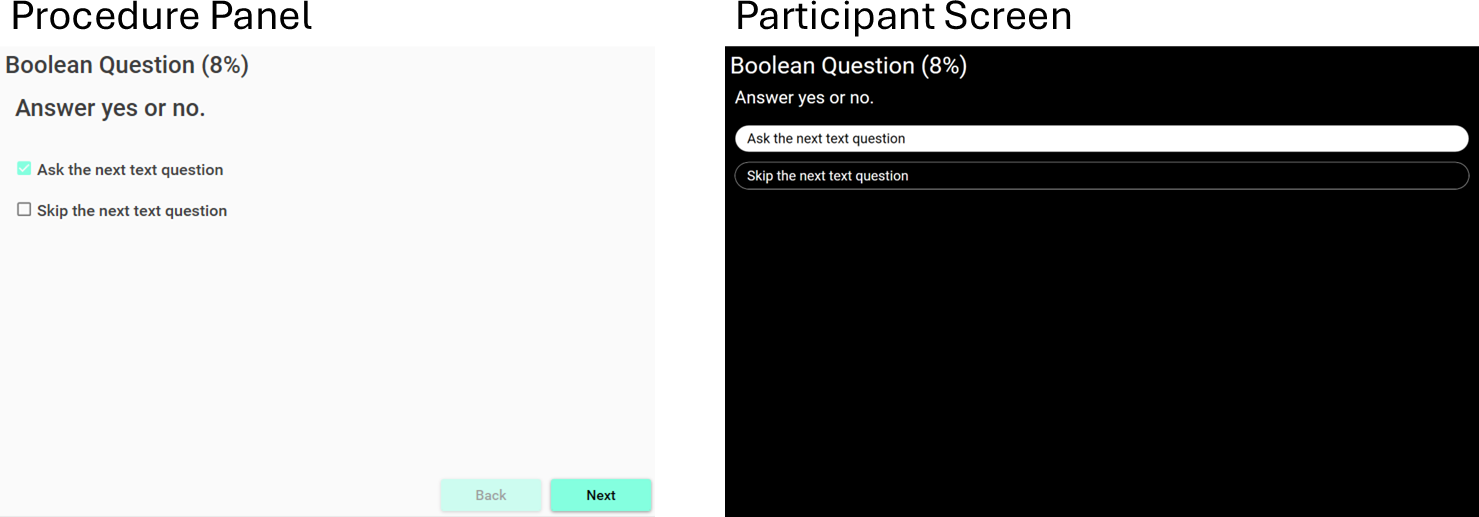
Illustration of the procedure panel and participant screen for the question
A <boolean> question is defined with:
<boolean id="booleanQuestion"
    title="Boolean Question"
    instruction="Answer yes or no."
    true-label="Ask the next text question"
    false-label="Skip the next text question" />
with the following attributes:
| Attribute | Type | Definition |
|---|---|---|
true-label |
dynamic string | Description of the true option. |
false-label |
dynamic string | Description of the false option . |
Numerical
The <numeric> question allows the participant or operator to provide a numerical
answer to a statement. The answer can be validated to be within a given range.
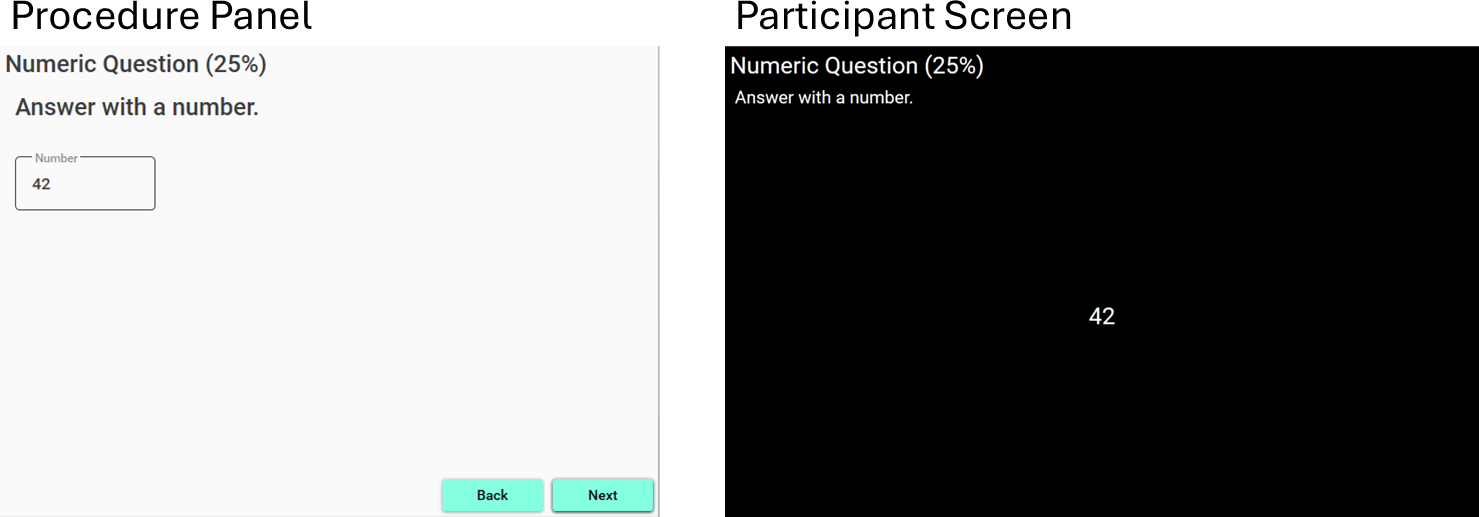
Illustration of the procedure panel and participant screen for the question
If the participant answers the question, the answer must be given verbally to the operator, who then enters it into the questionnaire. The operator’s entered value will be displayed to the participant so they can confirm it is correct.
A <numeric> question is defined with:
<numeric id="numericQuestion"
    title="Numeric Question"
    instruction="Answer with a number.">
    <validation min="0" min-included="true"
                max="100" max-included="true"/>
</numeric>
The numarical input can be validated that the answer is within a given range by defining an <validation> element.
The <validation> element have the following attributes:
| Attribute | Type | Definition |
|---|---|---|
min |
double | Minimum value for the number. |
min-included |
bool | Is the minimum included in the allowed range. |
max |
double | Maximal value for the number. |
max-included |
bool | Is the maximum included in the allowed range. |
Text
The <text> question allows the participant or operator to provide a verbal free-form
answer to a statement. The answer is in text that can be validated with a regular expression.
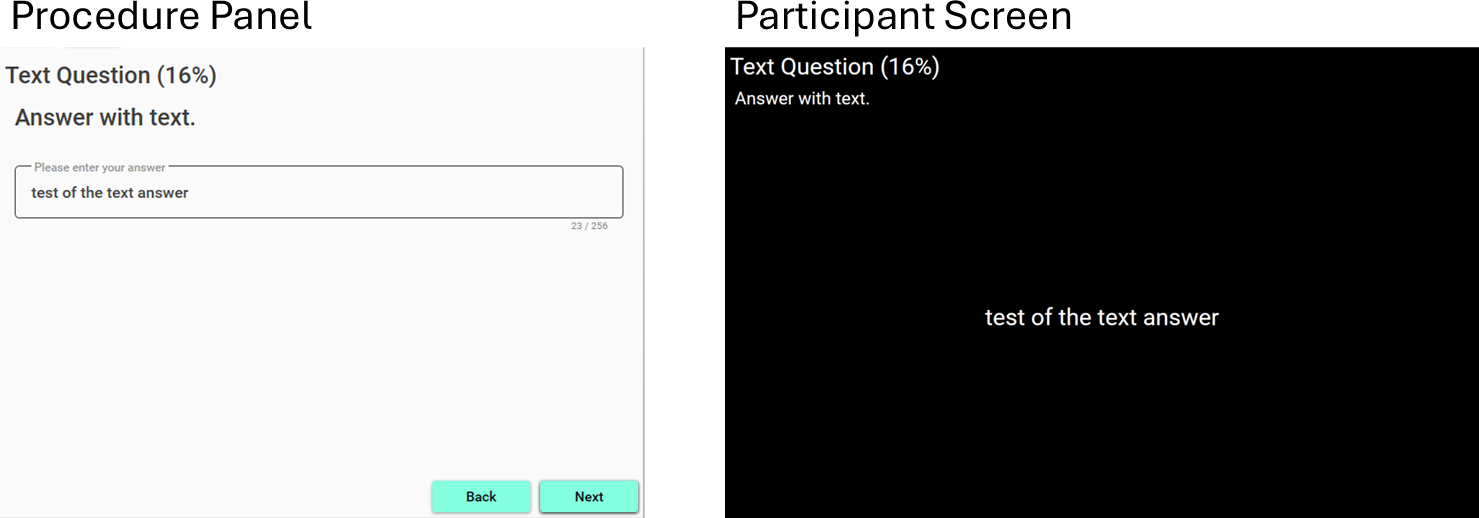
Illustration of the procedure panel and participant screen for the question
If the participant answers the question, the answer must be given verbally to the operator, who then enters it into the questionnaire. The operator’s entered value will be displayed to the participant so they can confirm it is correct.
A <text> question is defined with:
<text id="textQuestion"
    title="Text Question"
    instruction="Answer with text."
    condition="Current.booleanQuestion"
    maximal-length="255">
    <validation regex="[\w\s]*" advice="Any text that consists of word charecters and whitespace."/>
</text>
with the following attributes:
| Attribute | Type | Definition |
|---|---|---|
maximal-length |
int = Calculated(context) | Maximal length of the answer. |
The text answer can be validated with a regular expression by defining an <validation> element.
The <validation> element have the following attributes:
| Attribute | Type | Definition |
|---|---|---|
regex |
string | The regular expression that are used to validate the text. |
advice |
string | An advice on how to write a correct text input. |
Likert
The <likert> question enables participants or operators to indicate their level of agreement,
endorsement, or frequency using a Likert scale. A Likert scale is a symmetrically ordered set
of response categories, from which a single option may be selected.
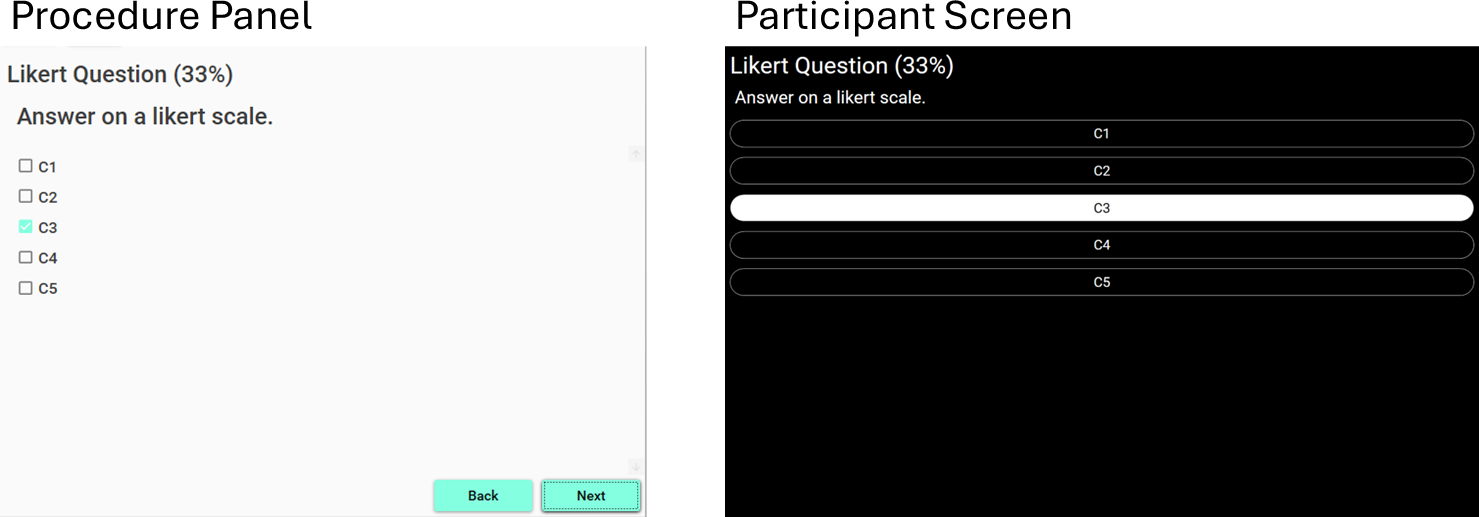
Illustration of the procedure panel and participant screen for the question
In LabBench, Likert scales are presented vertically. This vertical orientation allows for
longer, more descriptive labels for response categories than horizontally displayed categorical
rating scales. Participants select their response using the up and down button.
A <likert> question is defined with:
<likert id="likertQuestion"
    title="Likert Question"
    instruction="Answer on a likert scale.">
    <choice value="0" label="C1" />
    <choice value="1" label="C2" />
    <choice value="2" label="C3" />
    <choice value="3" label="C4" />
    <choice value="4" label="C5" />
</likert>
The categories of of the Likert chase is defined with <choice> elements, which have the following attributes:
| Attribute | Type | Definition |
|---|---|---|
value |
int | Likert scale score if that category is selected. |
label |
dynamic string | Description of the category |
Each response category is quantified by an integer value that corresponds to the Likert scale score if that category is selected.
Dimensional Likert
The <dimensional-likert> question enables participants or operators to indicate their level of
agreement, endorsement, or frequency using multiple Likert scales. A Likert scale is a symmetrically
ordered set of response categories, from which a single option may be selected.
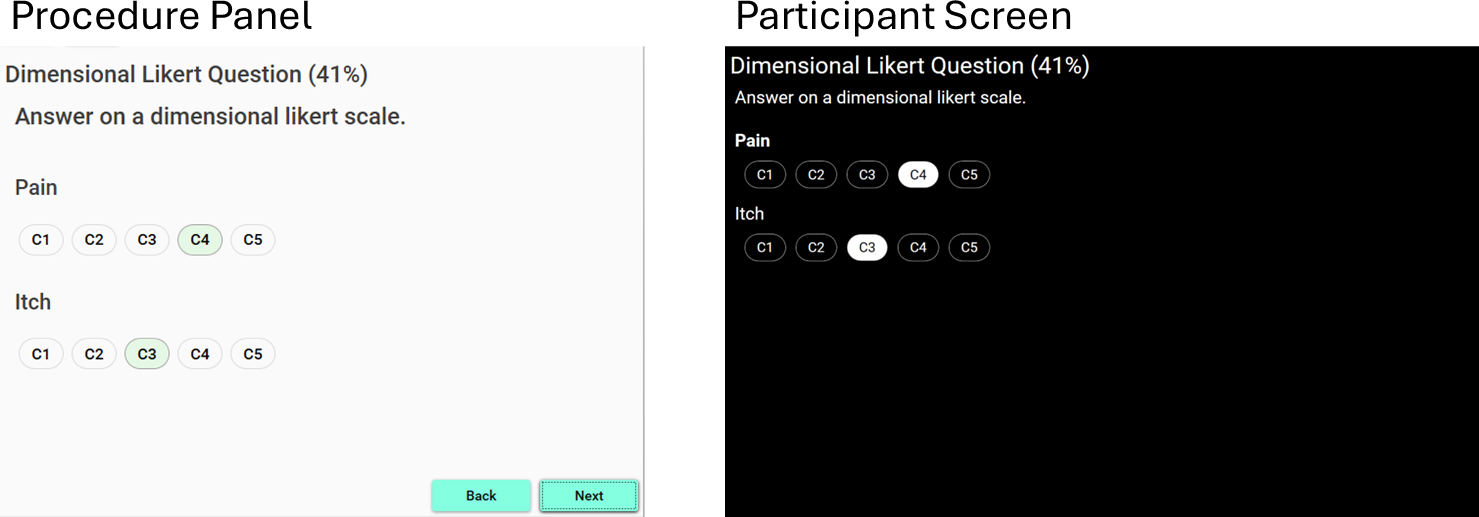
Illustration of the procedure panel and participant screen for the question
In LabBench, each Likert scale is presented horizontally. Participants select which Likert scale is
active using the up and down buttons, and perform their rating with the increase and decrease buttons.
A <dimensional-likert> question is defined with:
<dimensional-likert id="dlikertQuestion"
    title="Dimensional Likert Question"
    instruction="Answer on a dimensional likert scale.">
    <dimension name="Pain">
        <choice value="0" label="C1" />
        <choice value="1" label="C2" />
        <choice value="2" label="C3" />
        <choice value="3" label="C4" />
        <choice value="4" label="C5" />
    </dimension>
    <dimension name="Itch">
        <choice value="0" label="C1" />
        <choice value="1" label="C2" />
        <choice value="2" label="C3" />
        <choice value="3" label="C4" />
        <choice value="4" label="C5" />
    </dimension>
</dimensional-likert>
Each Likert scale (dimension) is defined with a <dimension> element, with the following attributes:
| Attribute | Type | Definition |
|---|---|---|
name |
dynamic string | Description of the Likert scale. |
The categories in each dimension is defined with the same
List
The <list> question asks a set of statement that can either be true or false. A statement is selected with the up and down buttons, and answered with the decrease and increase buttons, which makes the statement false and true, respectively.
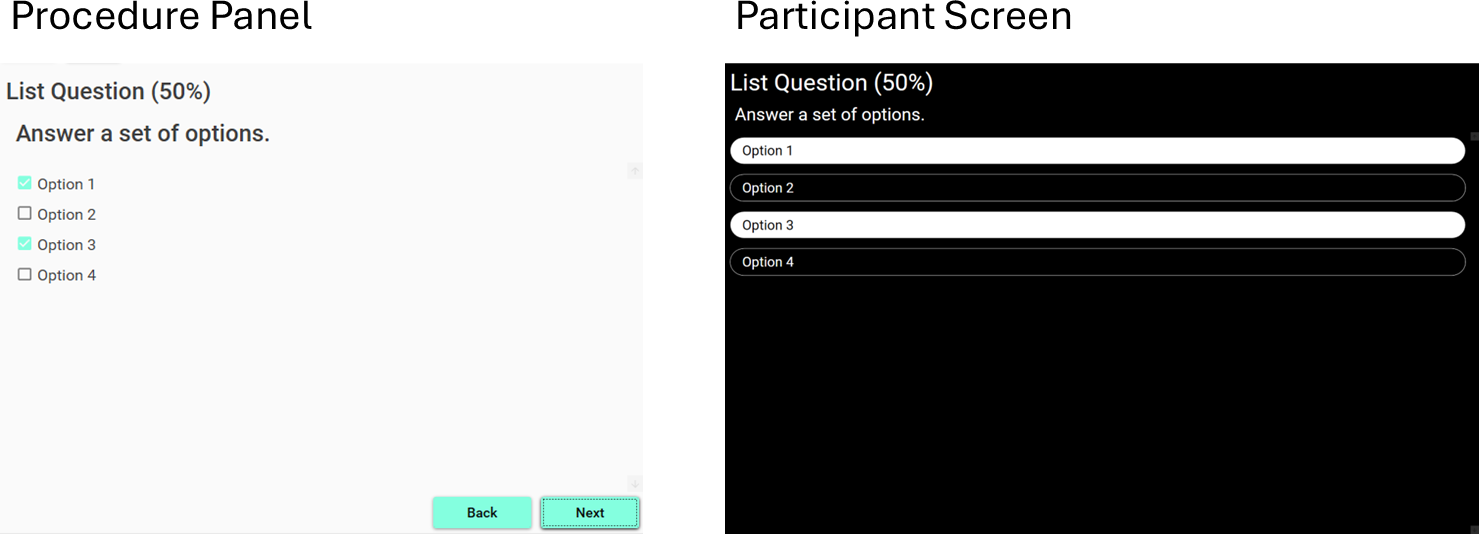
Illustration of the procedure panel and participant screen for the question
A <list> question is defined with:
<list id="listQuestion"
    title="List Question"
    instruction="Answer a set of options.">
    <item id="Q0" question="Option 1" />
    <item id="Q1" question="Option 2" />
    <item id="Q2" question="Option 3" />
    <item id="Q4" question="Option 4" />
</list>
Each statement in the set is defined by an <item> element that has the following attributes:
| Attribute | Type | Definition |
|---|---|---|
| id | string | Identification of the statement. This id must be unique. |
| question | dynamic string | A statement that the participant or operator can answer with either true or false. |
Time
The <time> question allows the participant or operator to provide answers to a question
when something occurred. The answer is in the form of a date and time.
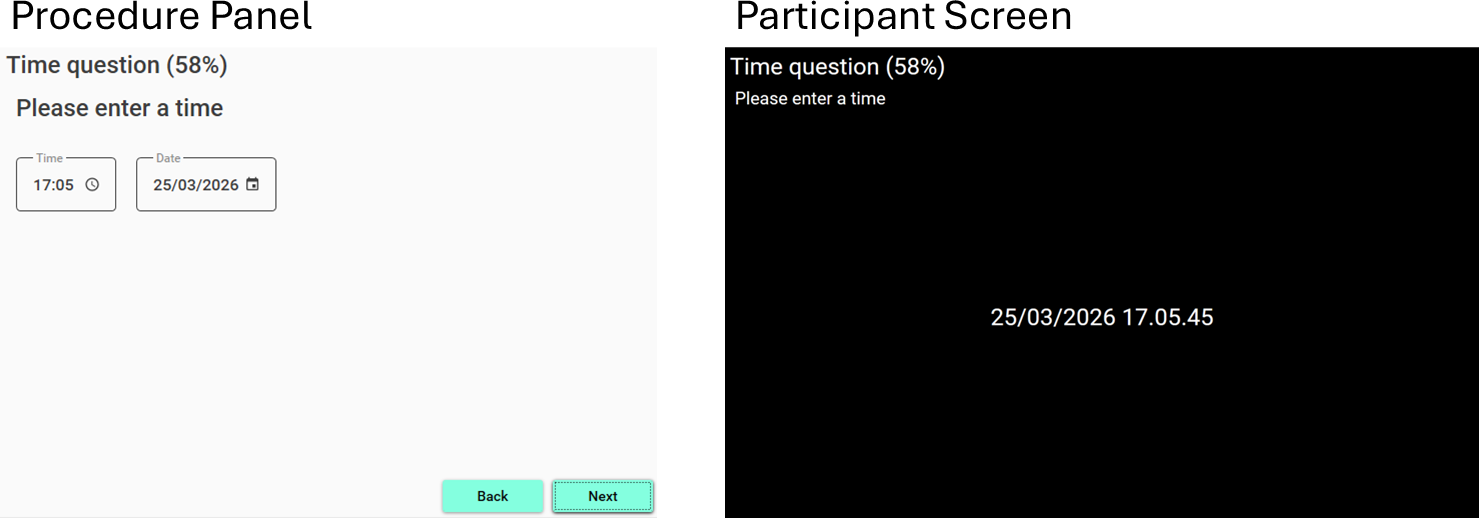
Illustration of the procedure panel and participant screen for the question
If the participant answers the question, the answer must be given verbally to the operator, who then enters it into the questionnaire. The operator’s entered value will be displayed to the participant so they can confirm it is correct.
A <time> question is defined with:
<time id="timeQuestion"
    title="Time question"
    instruction="Please enter a time" />
The <time> question has no question specific attributes or elements.
Map
The <map> question lets users select areas on an image, such as marking pain on a body map.
If the map question is answered by the operator, they selected/deselected areas by clicking
on the image in the LabBench Runner procedure window. If the participants answer the question,
they will use a Button instrument to navigate between areas and to select/deselct them.
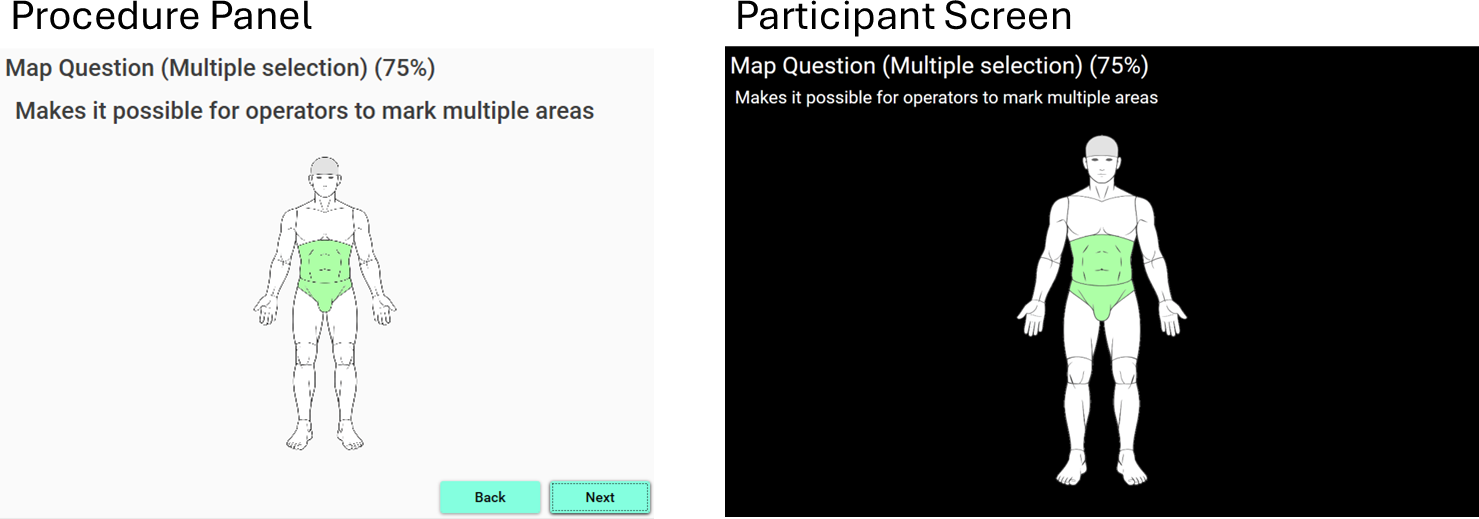
Illustration of the procedure panel and participant screen for the question
When participants answer the question, the following button functions must be defined in the button configuration:
up,down,left,right: are used to navigate between areas.increaseanddecrease: are used to select/deselect areas.
If the assigned device also implements the Joystick instrument, joystick movement can be used to navigate between areas.
A <map> question is defined with:
<map id="mapQuestionSingle"
    title="Map Question (Single selection)"
    instruction="Makes it possible for operators to mark single areas"
    image-map="Assets.BodyMap.Areas"
    overlay-image="Assets.BodyMap.Overlay"
    initial-active-area="C01"
    selection-mode="single"
    selected-colour="#ADFFA6"
    active-selected-colour="#82BF7C"
    deselected-colour="#FFFFFF"
    active-deselected-colour="#E3E3E3">

    <area id="C01" colour="#FF0A0A" down="C02" />
    <area id="C02" colour="#FF1414" down="C03" up="C01"/>
    <area id="C03" colour="#FF1E1E" down="C04" up="C02" left="C14" right="C17" />
    <area id="C04" colour="#FF2828" down="C05" up="C03" />
    <area id="C05" colour="#FF3232" down="C06" up="C04" left="C15" right="C18"/>
    <area id="C06" colour="#FF3C3C" down="C07" up="C05" left="C10" />
    <area id="C07" colour="#FF4646" down="C08" up="C06" left="C11" />
    <area id="C08" colour="#FF5050" down="C09" up="C07" left="C12" />
    <area id="C09" colour="#FF5A5A"            up="C08" left="C13" />
    <area id="C10" colour="#FF6464" down="C11" up="C05" right="C06" />
    <area id="C11" colour="#FF6E6E" down="C12" up="C10" right="C07" />
    <area id="C12" colour="#FF7878" down="C13" up="C11" right="C08" />
    <area id="C13" colour="#FF8282"            up="C12" right="C09" />
    <area id="C14" colour="#FF8C8C" down="C15"          right="C05" />
    <area id="C15" colour="#FF9696" down="C16" up="C14" right="C05" />
    <area id="C16" colour="#FFA0A0"            up="C15" />
    <area id="C17" colour="#FFAAAA" down="C18"          left="C03" />
    <area id="C18" colour="#FFB4B4" down="C19" up="C17" left="C05" />
    <area id="C19" colour="#FFBEBE"            up="C18"  />
</map>
The map question has the following attributes:
| Attribute | Type | Definition |
|---|---|---|
image-map |
image = Calculated(context) | An image that will provide the areas that can be selected. |
overlay-image |
image = Calculated(context) | An overlay image that will be added on top of the processed area image. |
selected-colour |
string | The colour of areas that the participant have selected, but which is currently not active. |
deselected-colour |
string | The colour of areas that the participant has not selected and which are currently not active. This colour is typically the same as the background colour of the image, meaning deselected/not active areas will not be colored. |
active-selected-colour |
string | The colour of areas that are selected and active. Please note that the concept of active/inactive areas is only used when the questionnaire is answered by the participant. If the operator answers the questionnaire then this attribute has no effect. |
active-deselected-colour |
string | The colour of areas that are active but not selected. Please not that the concept of active/inactive areas is only used when the questionnaire is answered by the participant. If the operator answers the questionnaire then this attribute has no effect. |
selection-mode |
enum | Area selection mode: single) one a single area can be selected in this mode if an area is selected and another area is allready selected then the other area will be automatically deselected, multiple) multiple areas can be selected simultaneously. |
initial-active-area |
string | Sets which area is initially active. This must be the ID of an <area> element. |
All colours must be specified in the form of #RRGGBB.
Definition of areas
An area on the image can be selected or deselected. Each area has an id and a colour, which
matches the colour of the pixels in that area. The operator or participant will not see this
color, as it will be replaced by one of the following:
deselected-colour: an area that is neither selected nor active.selected-colour: an area that has been selected by the operator/participant but is not active.active-deselected-colour: an area has not been selected and is active. Active mean that pressing theincreasebutton will select the area.active-selected-colour: an area has been selected and is active. Active mean that pressing thedecreasebutton will deselect the area.
The concept of an active/inactive area is relevant only when the participant completes the questionnaire. In that mode, it is the area currently in focus, and pressing the increase/decrease button selects/deselects the area, respectively.
When the participant answers the questionnaire, each area must also set up navigation to adjacent areas, specifying which area will be made active when the up, down, left, or right button is pressed. For each area, at least one button must be defined so the participant can’t get trapped and can’t navigate away from the area.
The procedure for generating the map is illustrated in the figure below. For its configuration, it needs a bitmap image whose colours indicate which pixels belong to each area. The participant and operator will never see these colours, as the procedure replaces them with the colours for the selected/deselected and active/inactive areas.
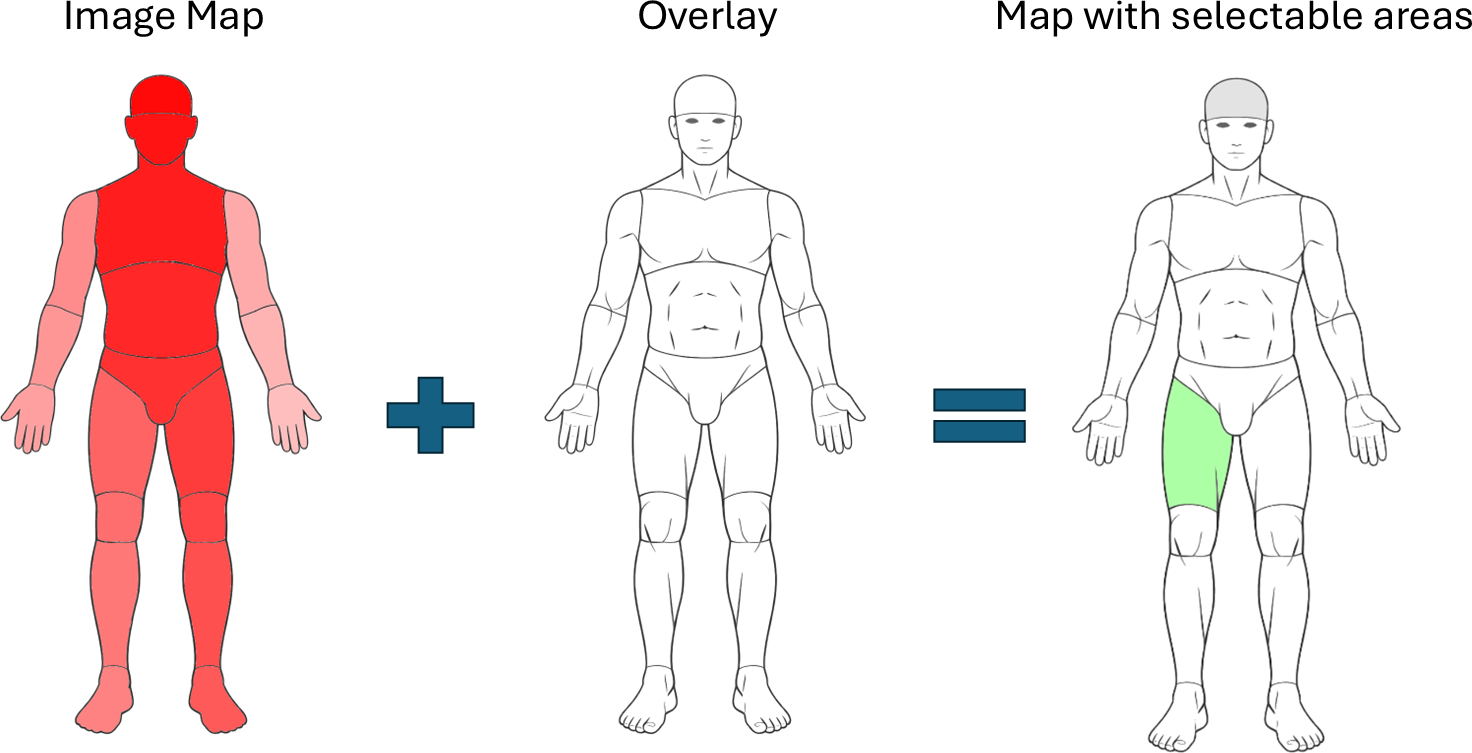
In the example above, the participant answers the procedure, has selected his right thigh, and has the top of his scalp is marked as active. This means the procedure has replaced all the pixels in the right thigh with the selected-colour, all the pixels on the top of his scalp with the active-deselected-colour and all the rest of the pixels with the deselected-colour. If the right thigh had been active, its pixels would have been replaced with the active-selected-colour to indicate to the participant that the active area is both selected and active.
If the operator had answered the question, she/he would select/deselect areas by clicking the area in the procedure panel with the mouse, and the question wouldn’t be displayed to the participant. Because the operator can use the mouse to click any area to select it, the active/inactive concept is not needed. Consequently, when the operator answers the question, only the selected-colour and deselected-colour is used.
The procedure needs to know the colour of each area in the image-map so it can replace those pixels based on the operator’s and/or participant’s input. If the question is to be answered by the participant, the navigation between areas must also be defined.
Areas are defined with <area> elements that have the following attributes:
| Attribute | Type | Definition |
|---|---|---|
id |
string | Identification of the area. This id must be unique. |
colour |
string | The colour that defines the area on the image-map. Must be specified as a hex value #RRGGBB. |
up |
string | Which area should be activated when the up button is pressed or the Joystick is moved up. Must be the id of an area. |
down |
string | Which area should be activated when the down button is pressed or the Joystick is moved down. Must be the id of an area. |
left |
string | Which area should be activated when the left button is pressed or the Joystick is moved left. Must be the id of an area. |
right |
string | Which area should be activated when the right button is pressed or the Joystick is moved right. Must be the id of an area. |
Categorical Scale Rating
The <categorical-scale> question asks the participant or operator to rate a sensation
on a categorical rating scale. If the participant answers the question, the rating is
increased/decreased by pressing the increase/decrease buttons, respectively.
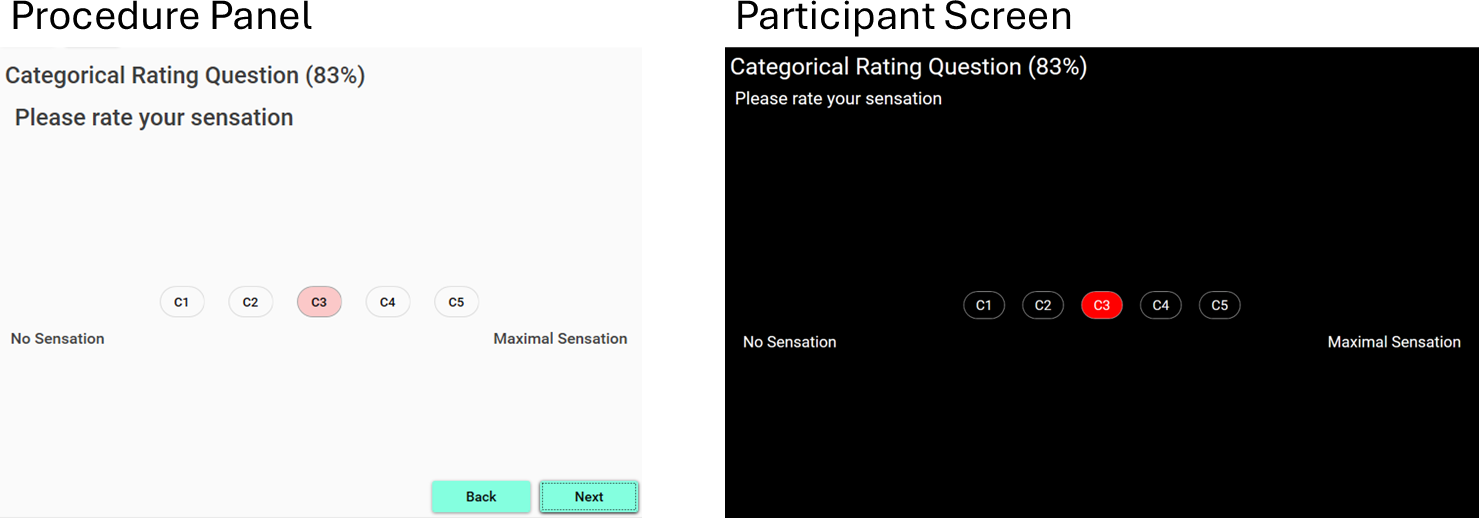
Illustration of the procedure panel and participant screen for the question
A <categorical-scale> question is defined with:
<categorical-scale id="categoricalScaleQuestion"
    title="Categorical Rating Question"
    instruction="Please rate your sensation"
    top-anchor="Maximal Sensation"
    bottom-anchor="No Sensation"
    active-colour="rgb(255,0,0)"
    inactive-colour="rgb(32,32,32)">
    <category value="C1" />
    <category value="C2" />
    <category value="C3" />
    <category value="C4" />
    <category value="C5" />
</categorical-scale>
Which have the following attributes:
| Attribute | Type | Definition |
|---|---|---|
top-anchor |
dynamic string | Top anchor for the scale. |
bottom-anchor |
dynamic string | Bottom anchor for the scale. |
active-colour |
string | Colour for the active category. The string must encode a valid RGB colour value, either in hex as #RRGGBB or as a rgb(RRR,GGG,BBB). For the rgb() notation the colours are in base 10. |
inactive-colour |
string | Colour for the inactive categories. The string must encode a valid RGB colour value, either in hex as #RRGGBB or as a rgb(RRR,GGG,BBB). For the rgb() notation the colours are in base 10. |
Categories are specified with the <category> element that has the following attributes:
| Attribute | Type | Definition |
|---|---|---|
| value | dynamic string | Description that will be displayed to the participant. |
Numerical Scale Rating
The <numerical-scale> question asks the participant or operator to rate a sensation
on a numerical rating scale. If the participant answers the question, the rating is
increased/decreased by pressing the increase/decrease buttons, respectively.
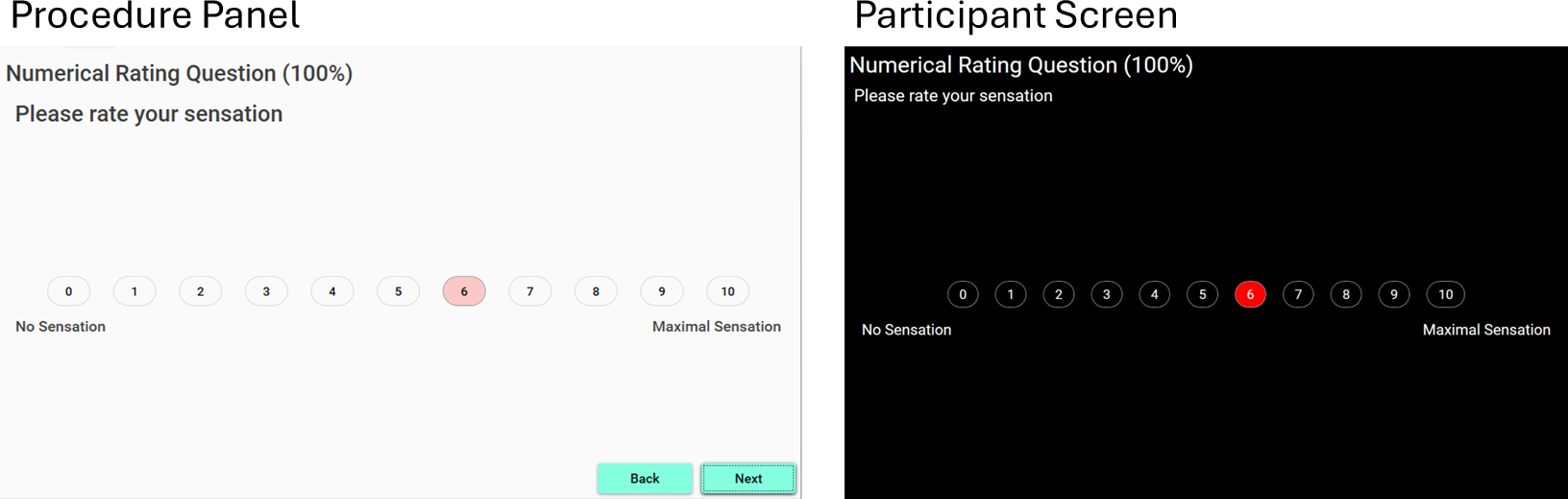
Illustration of the procedure panel and participant screen for the question
A <numerical-scale> question is defined with:
<numerical-scale id="numericalScaleQuestion"
    title="Numerical Rating Question"
    instruction="Please rate your sensation"
    top-anchor="Maximal Sensation"
    bottom-anchor="No Sensation"
    active-colour="rgb(255,0,0)"
    inactive-colour="rgb(32,32,32)"
    minimum="0"
    maximum="10" />
Which have the following attributes:
| Attribute | Type | Definition |
|---|---|---|
top-anchor |
dynamic string | Top anchor for the scale. |
bottom-anchor |
dynamic string | Bottom anchor for the scale. |
active-colour |
string | Colour for the active rating. The string must encode a valid RGB colour value, either in hex as #RRGGBB or as a rgb(RRR,GGG,BBB). For the rgb() notation the colours are in base 10. |
inactive-colour |
string | Colour for the inactive ratings. The string must encode a valid RGB colour value, either in hex as #RRGGBB or as a rgb(RRR,GGG,BBB). For the rgb() notation the colours are in base 10. |
minimum |
int | The minimum rating for the scale. |
maximum |
int | The maximal rating for the scale. |
Visual Analogue Scale Rating
The <visual-analogue-scale> question asks the participant or operator to rate a sensation
on a visual analog rating scale. If the participant answers the question, the rating is
increased/decreased by pressing the increase/decrease buttons, respectively.
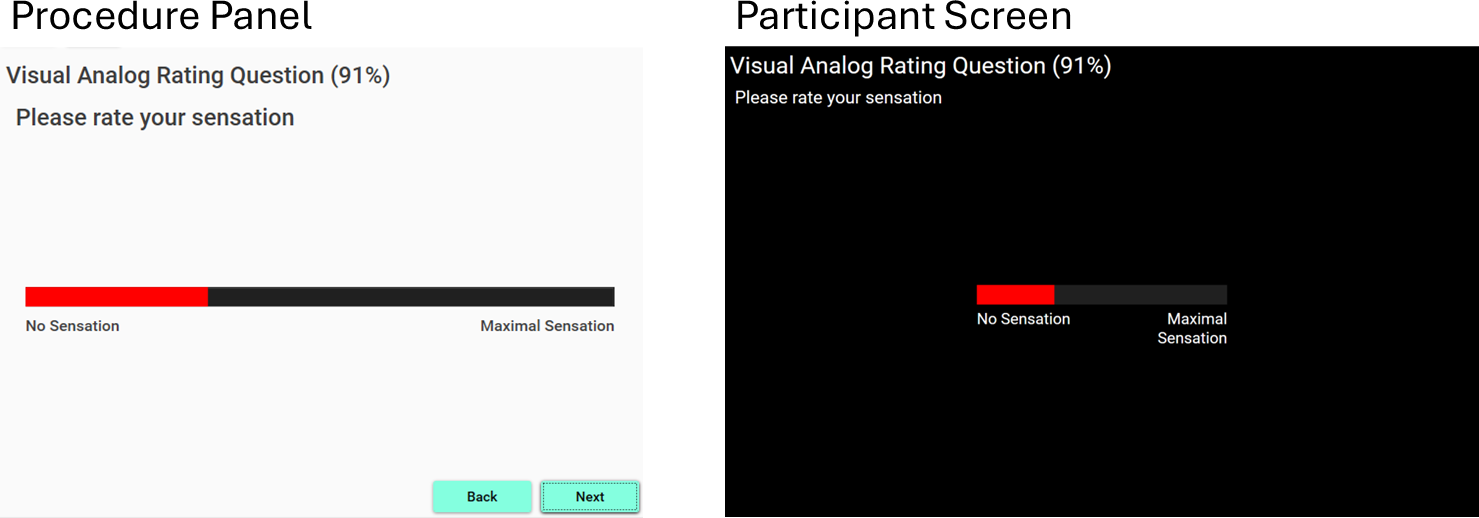
Illustration of the procedure panel and participant screen for the question
A <visual-analogue-scale> question is defined with:
<visual-analogue-scale id="visualAnalogScaleQuestion"
    title="Visual Analog Rating Question"
    instruction="Please rate your sensation"
    top-anchor="Maximal Sensation"
    bottom-anchor="No Sensation"
    active-colour="rgb(255,0,0)"
    inactive-colour="rgb(32,32,32)"
    length="10" />
Which have the following attributes:
| Attribute | Type | Definition |
|---|---|---|
top-anchor |
dynamic string | Top anchor for the scale. |
bottom-anchor |
dynamic string | Bottom anchor for the scale. |
active-colour |
string | Colour for the active part of the scale. The string must encode a valid RGB colour value, either in hex as #RRGGBB or as a rgb(RRR,GGG,BBB). For the rgb() notation the colours are in base 10. |
inactive-colour |
string | Colour for the inactive part of the scale. The string must encode a valid RGB colour value, either in hex as #RRGGBB or as a rgb(RRR,GGG,BBB). For the rgb() notation the colours are in base 10. |
length |
double | Physical length of the scale in centimetres |
Scripting
The answers to the questionnaire can be accessed form calculated parameters and Python code with the use of the dot notation:
ProcedureID.QuestionID
The type of the returned answer depends on the type of question:
| Question | Type | Description |
|---|---|---|
| Boolean | bool |
Returns whether the true or false option was selected as the answer. |
| Numerical | double |
Returns the number that was entered as the answer. |
| Text | string |
Returns the text that was entered as the answer. |
| Likert | int |
Returns the value of the selected Likert category. |
| Dimensional Likert | int[] |
Returns an array of the value’s of the selected Likert categories. |
| List | dictionary<bool> |
Returns a dictionary with the answer to the statements asked in the question, where the keys to these answers are the statement id’s ([Statement ID]. The answers can be accessed either as ProcedureID.QuestionID[”StatementID”] or, ProcedureID.QuestionID.StatementID. |
| Time | struct |
Returns a structure with the fields Time, ElapsedHours, and ElapsedDays. The Time field provides access to a DateTime object containing the Date and Time entered as the answer. The ElapsedHours and ElapsedDays fields provide the hours and days passed between the date/time that was entered as the answer and the time at which the question was answered. If the date/time is before the time at which the question was answered, the elapsed time will be negative. |
| Map | dictionary<bool> |
Returns a dictionary indicating whether an area was selected, where the keys to these answers are the id ([AreaID] of the area. The answers can be accessed either as ProcedureID.QuestionID[”AreaID”] or, ProcedureID.QuestionID.AreaID. |
| Categorical Rating | int |
Returns the categorical rating. The scale categories are numbered from 0; consequently, the ratings will range from 0 to NumberOfCategories - 1. |
| Numerical Rating | int |
Returns the numerical rating, which is an integer between the scale’s minimum and maximum. |
| Visual Analogue Rating | double |
Returns the visual analogue rating, which is a rational number between 0 and the length of the scale. |
DateTime
Represents a specific instant in time, typically expressed as a combination of a calendar date and a precise time of day, with optional context such as time zone or UTC offset depending on how it is used.
The following properties provides access to the date/time data:
| Name | Description |
|---|---|
| Date | Returns the date portion of this instance, with the time component set to midnight. |
| Day | Returns the day of the month for this instance. |
| DayOfWeek | Returns the weekday corresponding to this instance. |
| DayOfYear | Returns the numeric day within the year for this instance. |
| Hour | Returns the hour component of this instance. |
| Kind | Indicates whether this instance represents local time, Coordinated Universal Time (UTC), or an unspecified time. |
| Microsecond | Returns the microsecond component, ranging from 0 to 999. |
| Millisecond | Returns the millisecond component of this instance. |
| Minute | Returns the minute component of this instance. |
| Month | Returns the month component of this instance. |
| Now | Returns a DateTime instance representing the current local date and time. |
| Second | Returns the second component of this instance. |
| Ticks | Returns the total number of ticks representing this instance. |
| TimeOfDay | Returns the time elapsed since midnight for this instance. |
| Today | Returns the current date with the time component set to midnight. |
| UtcNow | Returns a DateTime instance representing the current date and time in UTC. |
| Year | Returns the year component of this instance. |
And have the following methods:
| Name | Description |
|---|---|
| CompareTo(DateTime) | Compares this instance with another DateTime and returns an integer describing their relative order. |
| DaysInMonth(int month, int year) | Returns the number of days in a given month of a specific year. |
| Equals(DateTime) | Determines whether this instance is equal to another DateTime. |
| IsDaylightSavingTime() | Indicates whether this instance falls within daylight saving time in the current time zone. |
| IsLeapYear(int year) | Determines whether a specified year is a leap year. |
| ToLocalTime() | Returns a new DateTime converted to local time. |
| ToLongDateString() | Converts this instance to a long date string representation. |
| ToLongTimeString() | Converts this instance to a long time string representation. |
| ToShortDateString() | Converts this instance to a short date string representation. |
| ToShortTimeString() | Converts this instance to a short time string representation. |
| ToString() | Converts this instance to a string using current culture formatting. |
| ToString(string format) | Converts this instance to a string using a specified format. |
| ToUniversalTime() | Returns a new DateTime converted to UTC. |