Devices
The Devices page in the LabBench Runner makes it possible to add, monitor, and remove devices from the system. Before protocols can be installed as experiments on LabBench systems, you must first add the devices required by the protocol.
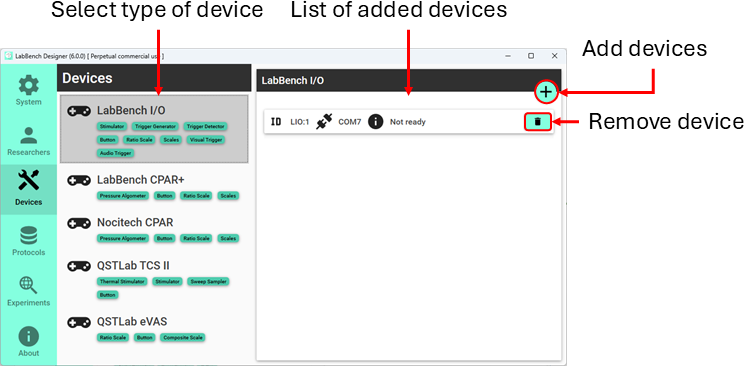
Managing devices is performed on the Devices page in LabBench Designer:
Adding devices
To add a device to LabBench, select the type of device to add from the list of device types on the left half of the Devices Page, then click the Add Devices button.
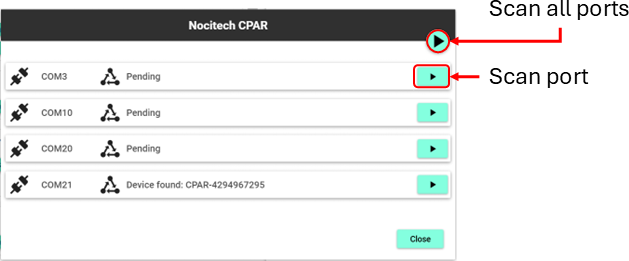
Figure 1: Scan for devices dialog
Clicking the Add Devices button will open the Scan Devices Dialog as shown in Figure 1. From this dialog, you can scan all ports by clicking the Scan all ports button or scan a specific port by clicking the Scan Port button.
Once the device(s) has been added you can close the dialog with its Close button. The newly added devices will be listed on the List of added devices on the Devices Page.
Resolving problem with Bluetooth serial ports
If your computer has Bluetooth Serial Ports, as shown in Figure 2, the Scan all ports will fail in the Add Devices Dialog. In that case, the scan will stop at the first Bluetooth Serial Port and display Testing for this port indefinitely.
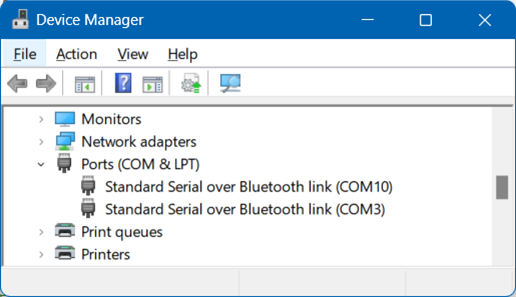
Figure 2: Bluetooth serial ports
The Scan port button has been implemented to solve this problem. If you encounter this problem, then close the dialog and reopen it. When it is reopened, click the Scan Port button for the port the device is connected to instead of the Scan All Ports button. This will scan the specific port without getting halted by the Bluetooth serial ports, allowing you to add the device despite the problem with the serial Bluetooth ports halting the scan.
Removing devices
Remove devices by clicking the Remove Device button on the List of available devices.
In rare circumstances, Windows may assign a new serial port name to an already added device, in which case it becomes unusable by LabBench, as LabBench will expect it on its old port name.
In that case, remove the device and add it again to the system. It will then be added with its new serial port name and become usable by LabBench again.