Protocols
To create an experiment with LabBench, you must first have a protocol. Protocols are organized into Protocol Repositories, which are configured and managed from the Protocol page in LabBench Designer (see Figure 1). A full description of Protocol Repositories is beyond the scope of this LabBench Administration guide; however, below is a short introduction to the key concepts of Protocol Repositories that are needed to manage them in LabBench Designer and create experiments from the protocols they contain.
A unique ID identifies each Protocol Repository; for example, the public LabBench Protocol Repository added automatically to all LabBench systems has the ID: labbench.io. The protocols within the repository are also identified with an ID that must be unique within the repository but not necessarily unique across all protocol repositories, where the full ID of a protocol is [Protocol ID]@[Repository ID]. Consequently, ctscpm@labbench.io is the ctscpm protocol in the labbench.io repository.
Technically, a repository consists of a repository index file repository.xml that lists the protocols within the repository. Each protocol must be in a subfolder to the directory containing this repository index file. Each subfolder contains the protocol itself and all protocol assets that it requires. Examples of protocol assets include instruction files to the operator and/or subjects, images, sounds, etc.
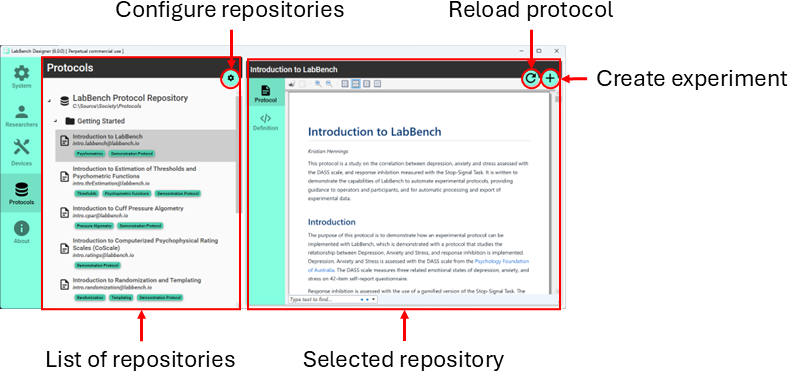
Figure 1: Protocols page
To be used by LabBench, a repository must be located in a place that LabBench can access. Currently, LabBench can access repositories when they are located either as a local directory on the computer or when they can be downloaded from a web server.
Placing a repository in a local directory is useful when writing protocols or if it is on a laboratory computer where internet access is impossible or impractical. However, local directories are impractical when the same protocol must be used on multiple laboratory computers and/or research groups. In that case, a better solution is to host the repository online on a web server. GitHub has been tested and used extensively for hosting repositories and is a good free solution for that purpose.
Repository configuration
When you need custom protocols that are not in the public LabBench Protocol repository, you must add additional repositories to your LabBench system.
To add or delete repositories, click the Configure Repositories button on the Protocol Page. This button is located in the the lower left of the Repositories list header and will open the Configure Repositories dialog (see Figure 2).
To add a repository, write or paste in the path to the local directory or the URL to where the repository.xml can be loaded or downloaded from, respectively, then click Add. If LabBench can load/download the repository.xml repository index file from this location it will add it to the system.
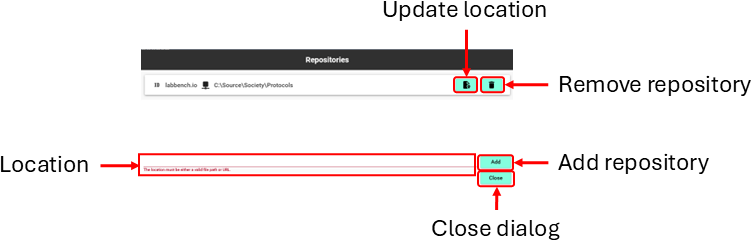
Figure 2: Configuration of protocol repositories.
To delete a repository, click the Delete button in the repository. Please note that if the system has remote experiments (please see section \ref{sec:CreateExperiment}), it is impossible to delete the repository.
Creating experiments
To create an experiment from a protocol, click the Create Experiment button in the lower left of the Protocol header. This will open the Create Experiment dialog (see Figure 3).
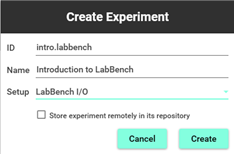
Figure 3: Create an experiment.
The Create Experiment dialog will allow you to give the experiment an ID and name and choose its experimental setup. It also allows you to specify whether the experiment should be installed into the internal data storage of LabBench or located remotely in its repository.
If the protocol’s ID and/or name in the repository is not yet used for an experiment, this ID and name will be prefilled in the Create Experiment dialog. However, the ID and Name of an Experiment must be unique, so if an experiment with that ID and/or name already exists, you must specify a unique ID and name for the experiment.
Protocols may contain multiple experimental setups that can be used to run an experiment with the protocol. For example, most Cuff Pressure Algometry protocols can be performed with the LabBench CPAR+ or the Nocitech CPAR device. However, an experiment can only use one experimental setup. Consequently, when you create an experiment from a protocol in a repository that contains multiple experimental setups, you must choose which one you want to use.
The last option, “Store experiment remotely in its repository,” controls whether LabBench copies the protocol and all its protocol assets into its internal storage or leaves them in its repository. This option is intended as a convenience when you are developing a protocol and is not intended for when you are running an experiment. If you store a protocol remotely in its repository, you will not have to recreate an experiment from the protocol each time you change it. During protocol development, this saves a significant amount of time. However, it is also error-prone, as it is possible to make changes to the protocol incompatible with subjects created with an older version of the protocol. In that case, you will likely experience runtime errors from these incompatibilities. A second problem is that the protocol may unintentionally be changed during an experiment, which risks stopping or invalidating the experiment.
Consequently, storing the protocol remotely is advised when developing protocols but never when running actual experiments.