System
Logging
LabBench has a built-in log system that automatically logs all events taken by LabBench or by the operator using the user interface. During experimental sessions, the operator can also add log entries manually for events that happen outside the control of LabBench.
The logging system is configured on the Logging page of the System tab in LabBench Designer (please see Figure 1).
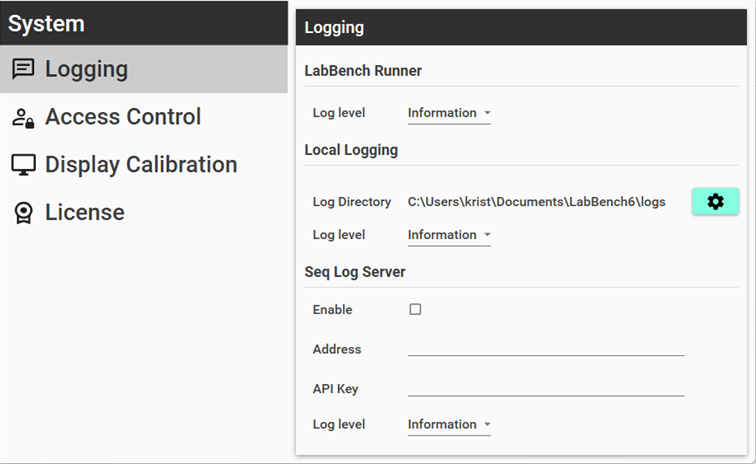
Figure 1
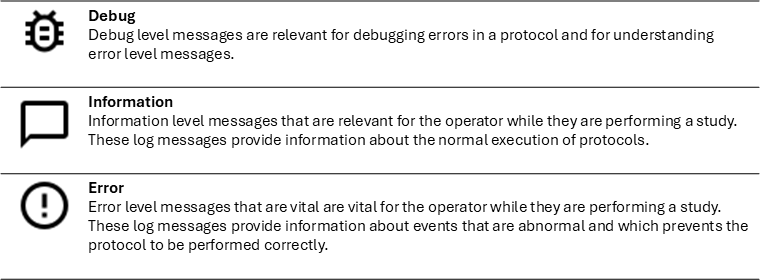
Log entries are timestamped and have a message and a level. The log level indicates the severity and type of information:
Log events are saved to persistent storage and appear in the log panel of LabBench Runner when they occur during protocol execution.
LabBench have three types of persistent storage for log events:
- The internal database of LabBench: Log entries are always saved to this database and can later be exported with a post-session action for each participant in a study.
- Local storage: Log entries are always saved to local text files on the laboratory computer running LabBench.
- Seq Log Server: Log entries can be configured to be sent to an instance of the Seq Log Server that must be provided by the organisation running studies with LabBench.
The minimum log level that will be saved by each storage location can be configured individually.
LabBench Runner
LabBench Runner includes a log panel that displays log events during an experimental setup and allows the operator to enter log messages. Operator-entered log messages will have a level of Information.
The log level that can be configured for LabBench Runner is the minimal log level that will be shown in this log panel. For studies, the recommended log level is Information, as Debug may overload the operator during the session and risk that important log messages are overlooked.
Local Logging
The Local Logging session allows you to configure where log files are stored and the minimum log level written to them.
The log level configured for Local Logging is also the minimum log level written to the internal LabBench database.
Seq Log Server
The Seq Log Server is a 3rd-party log server that can be hosted locally by the organisation that uses LabBench. This makes it possible to collect logs from all LabBench instances used within an organisation and monitor them centrally. The advantage is that support personnel can be notified of potential problems in real time, and audit records for studies can be collected centrally and inspected by auditors without having to inspect each site locally.
The use and connection to a locally maintained Seq Log Server can be configured in the Seq Log Server section. Please refer to the Seq Log Server documentation for information on configuring the Address and API key.
A free version of Seq Log Server for single-computer use is available. When the Seq Log Server is enabled in LabBench Designer, LabBench will, by default, use such an installation.
Access Control
LabBench uses role-based access control. When LabBench is installed, this system is disabled, meaning anyone opening LabBench has full access, including the ability to perform potentially destructive actions such as deleting data or entire studies.
For single-researcher environments or environments that can rely on computer logins, this may be acceptable. However, in multiple-researcher environments, it may be required to restrict access to certain actions, which can be accomplished by enabling the Access Control system. Access Control can be enabled on the Access Control page (please see Figure 2).
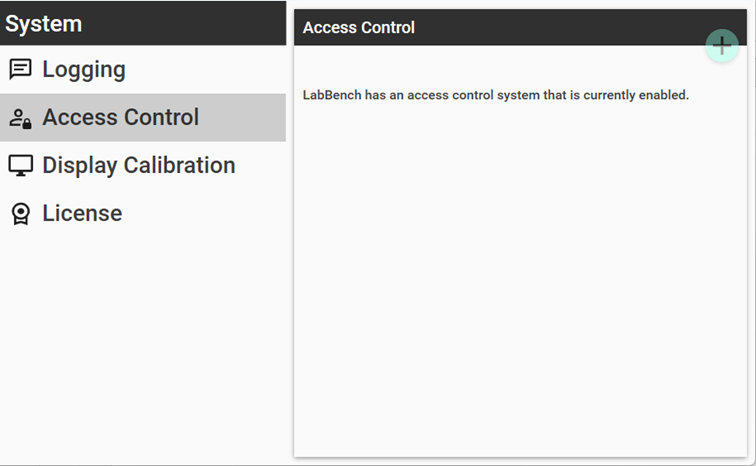
Figure 2
For information on role-based access control and its configuration, please refer to the Researchers page.
Display Calibration
LabBench protocols can use a second external monitor to display visual stimuli, psychophysical rating scales, questionnaires, and similar instruments during experimental setups. These can be displayed so they have a given physical size or occupy a given visual angle from the participant’s viewpoint. These sizes and angles are specified by LabBench protocols; however, for LabBench to display them correctly, it needs to know the monitor’s size and its distance from the participant.
The current monitor calibration data can be seen on the Display Calibration page (see Figure 3). Calibration data can be updated using the “Calibrate display” button.
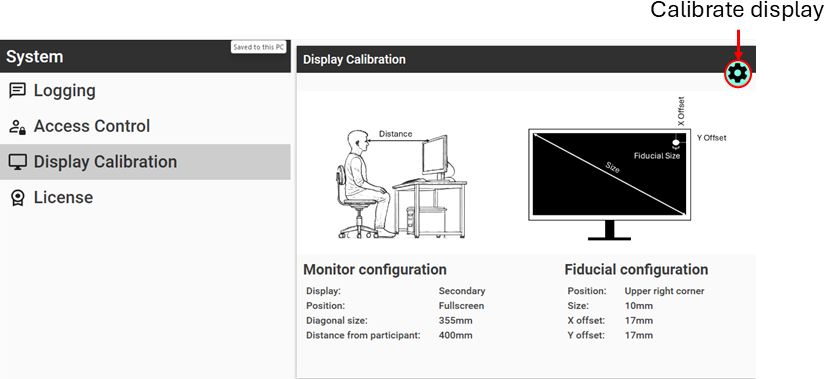
Figure 3
For information on how to calibrate monitors, please refer to the Screen and fiducial calibration protocol available in the LabBench Protocol Repository.
License
When you install LabBench, it will be assumed that you will use it for academic, non-commercial purposes. If you are a scientist at a public academic institution and will only use LabBench for studies with no direct commercial application or for educational purposes, you do not need to be concerned about the License page.
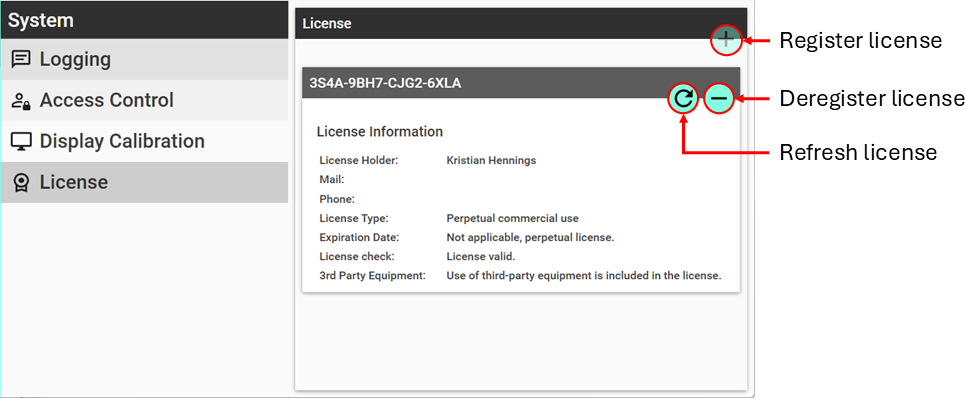
Figure 4
However, you will need a paid license and to register it on the License page (see Figure 4) if:
- You will use LabBench in a commercial entity or at an academic institution where it has a direct commercial application, or
- You need to run studies that use 3rd party equipment (e.g. equipment that is not provided under the LabBench name by Inventors’ Way).
If you are unsure whether a paid license is needed, please contact us at help@labbench.io.
Registrering a license
Click the “Register license” button to register a license for the current computer. When you register a license, it will be locked to the computer, meaning it can only be used on one computer at a time.
A license, however, can be moved between computers as many times as needed. To move a license, first deregister it from the computer where it is currently in use, then register it on the new computer.
Deregistrering the license
Click “Deregister license” to deregister the license so it can be used on another computer.
Refreshing the license
After a perpetual license has been successfully registered, LabBench will not contact the license server again. This ensures an internet connection is only needed when you register or deregister a license.
Consequently, if the license has been changed, for example, the use of 3rd party equipment has been added, or a trial license has been converted to a perpetual license, then you will need to refresh the license.
To refresh the license, click the “Refresh license” button. Please note this will also require an internet connection as LabBench will need to contact the license server.